
Upload and classify
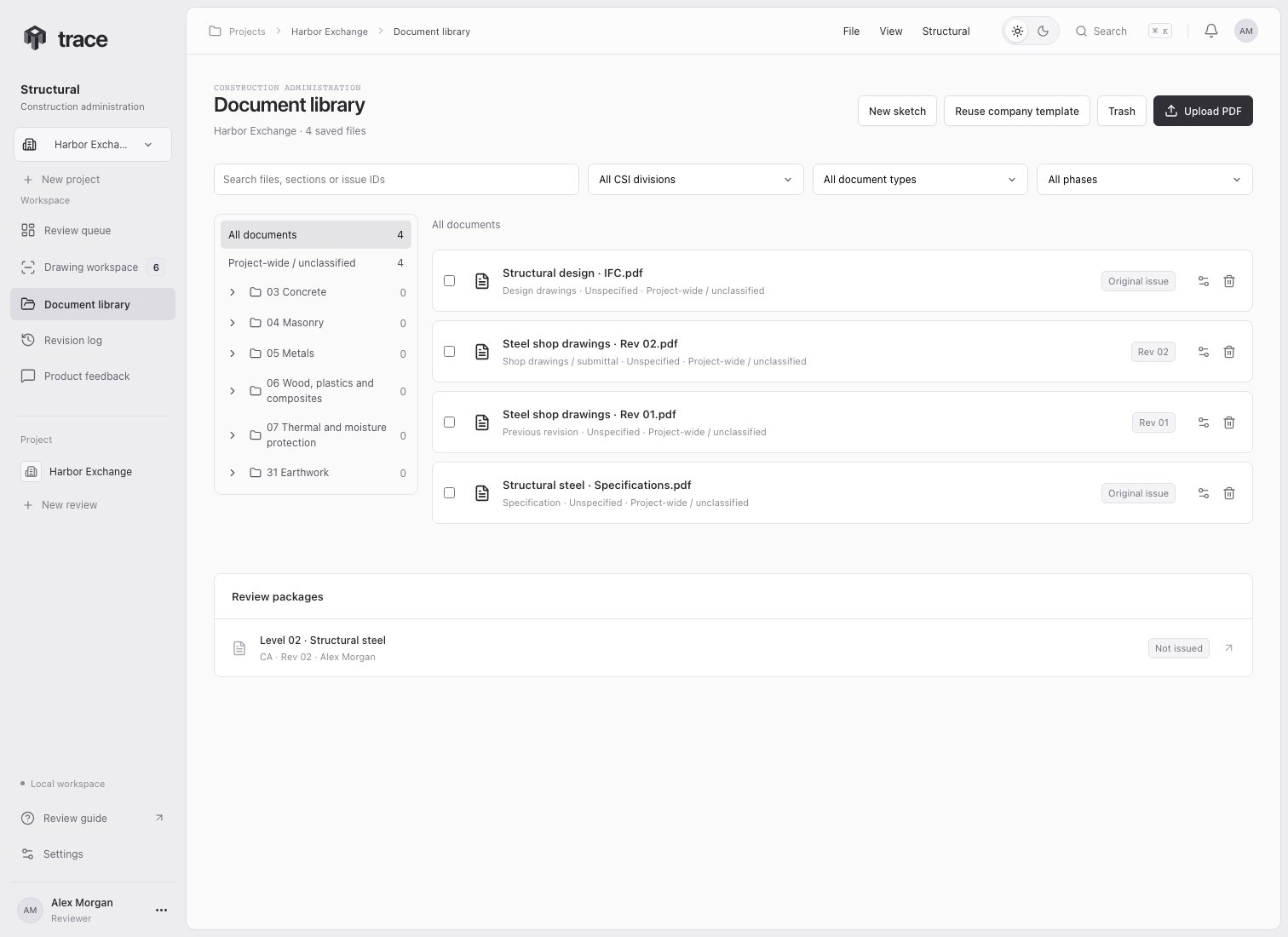
Choose Upload PDF, a document role and review module. Select a CSI division, enter an optional section identifier, and choose its issue phase:- SD: Schematic design
- DD: Design development
- CD: Construction documents
- CA: Construction administration
Original drawings, bulletins and sketches
Upload the original as Design drawings. Upload each change as a Structural bulletin or Structural sketch, link its Original drawing set, and record the issue identifier, date and affected sheets/details. These documents supplement the original. Shop revision chains apply to shop submissions. When creating a review against that original, select all its linked supplements. Trace adds them when the reference is selected and checks for omissions on the server. Conflicting or unclear applicability requires engineer resolution. Use Typical details for generic details whose applicability is established by the project notes. Use Project section details for a specific plan cut, grid and level. The review traces those references across sheets.Specifications and company masters
Store company templates as Company master specification. In another project in the same workspace, choose Reuse company template to save an independent copy. The original and its PDF remain unchanged. Upload the adopted project specification separately, with its phase, CSI classification and optional Company template link. The master template cannot be selected as the primary governing source.Browse without leaving Trace
Open any saved PDF to select its page, search readable sheet text, or compare it with another saved PDF. Find a sheet, schedule or detail provides text-derived tags and page search. Scanned pages may need visual inspection. The index does not train a model or establish full drawing comprehension.Resubmissions and prior comments
Upload a shop revision using Previous shop drawing and a unique Shop revision label. The prior PDF remains stored. Open the file to switch between saved revisions or compare them. A new review automatically includes the linked parent of each selected shop submission, including additional PDFs. An addressed assessment must cite the matching previous and current drawing history. Every prior non-dismissed finding and its engineer notes receive a revision assessment. Carried comments remain in later resubmissions, even when the immediate previous review added no new findings. Open Previous comments in the drawing workspace, inspect its evidence, and choose Verify comment. Only the assigned reviewer can verify it. Approved is blocked while a previous comment remains unverified, unresolved, partly addressed or needs information. Earlier package decisions stay unchanged.